Importing orders
The bulk import tool allows you to upload multiple orders at once, saving time on manual entry for large-scale requests or external bookings. This guide will walk you through downloading the correct template, filling out your order data, and submitting your file.
Log into the Menu Manager
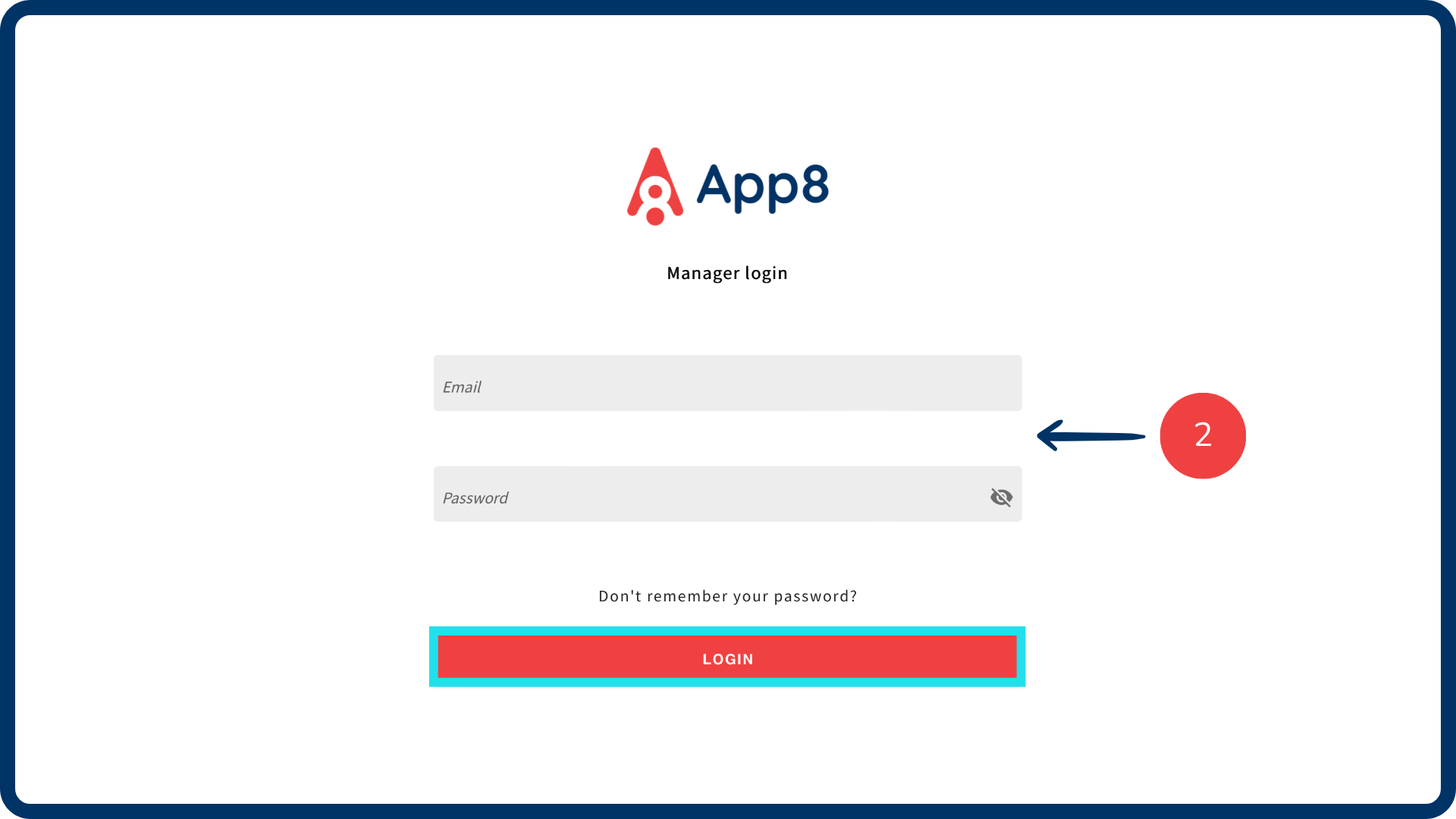
Go to the Menu Manager.
Enter your credentials and login.
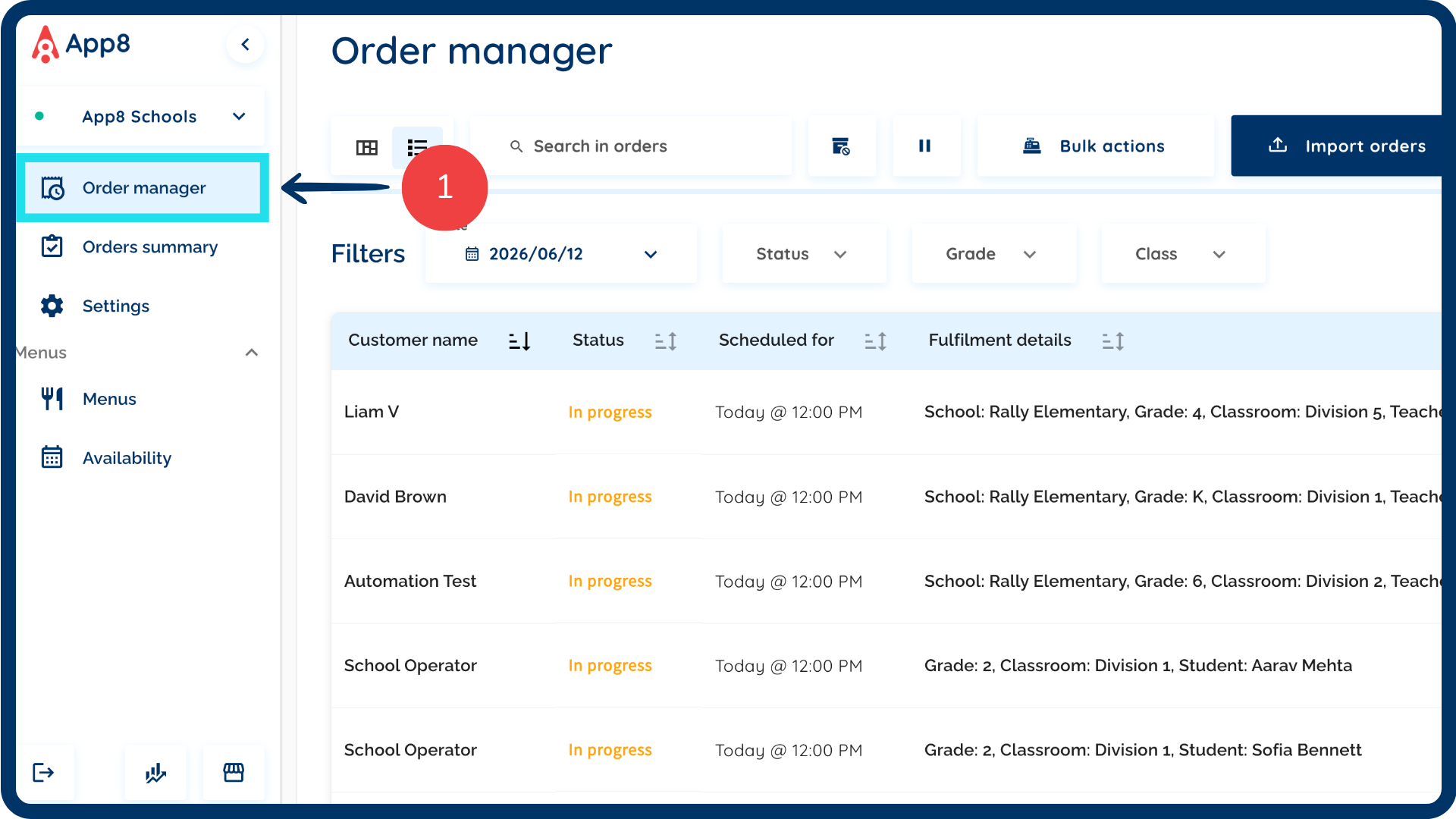
Navigate to the order manager
Select “Order manager” from the left sidebar.
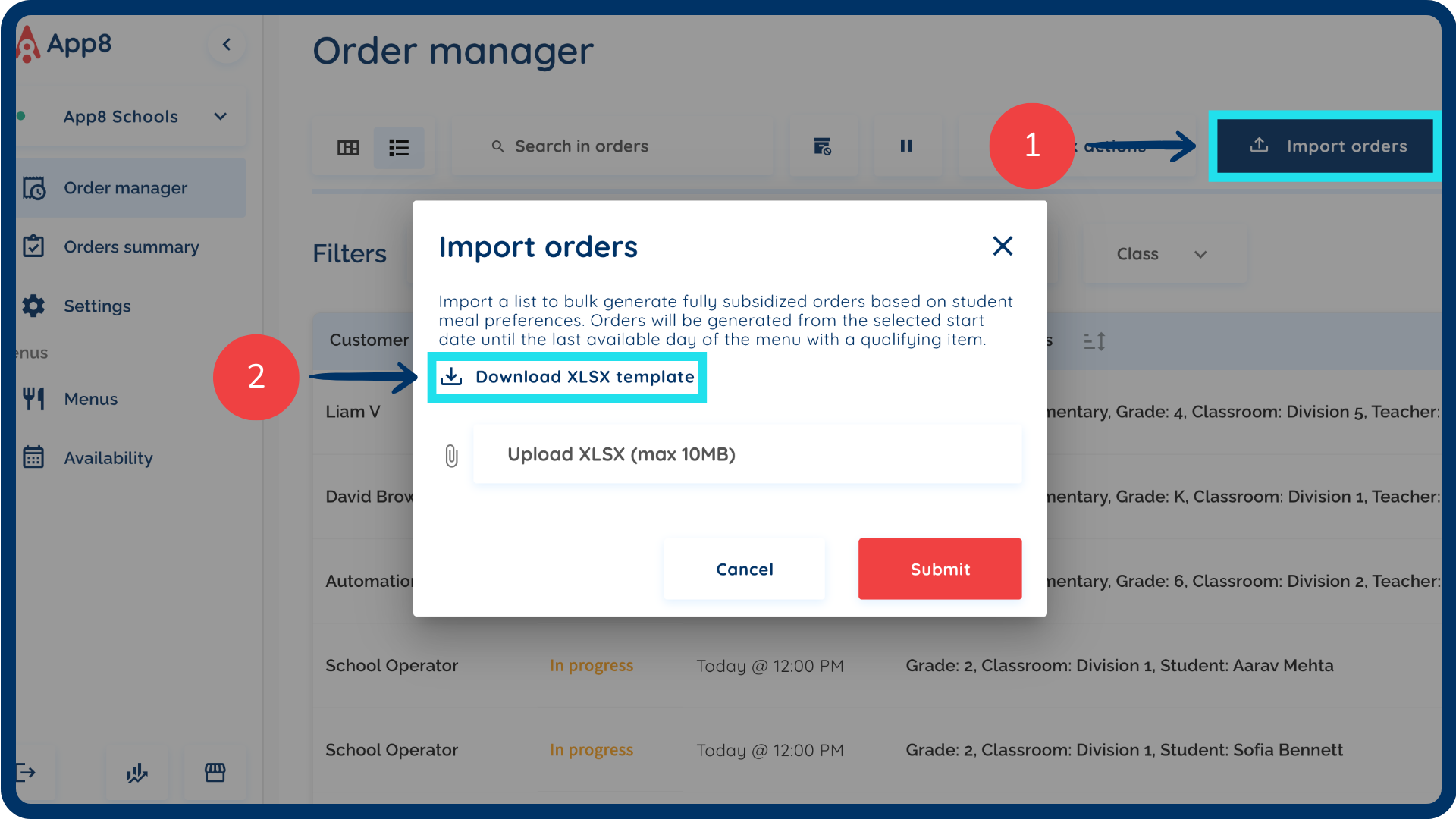
Initiate the import
Click the “Import orders” button.
Click to download the XLSX template provided by the system.
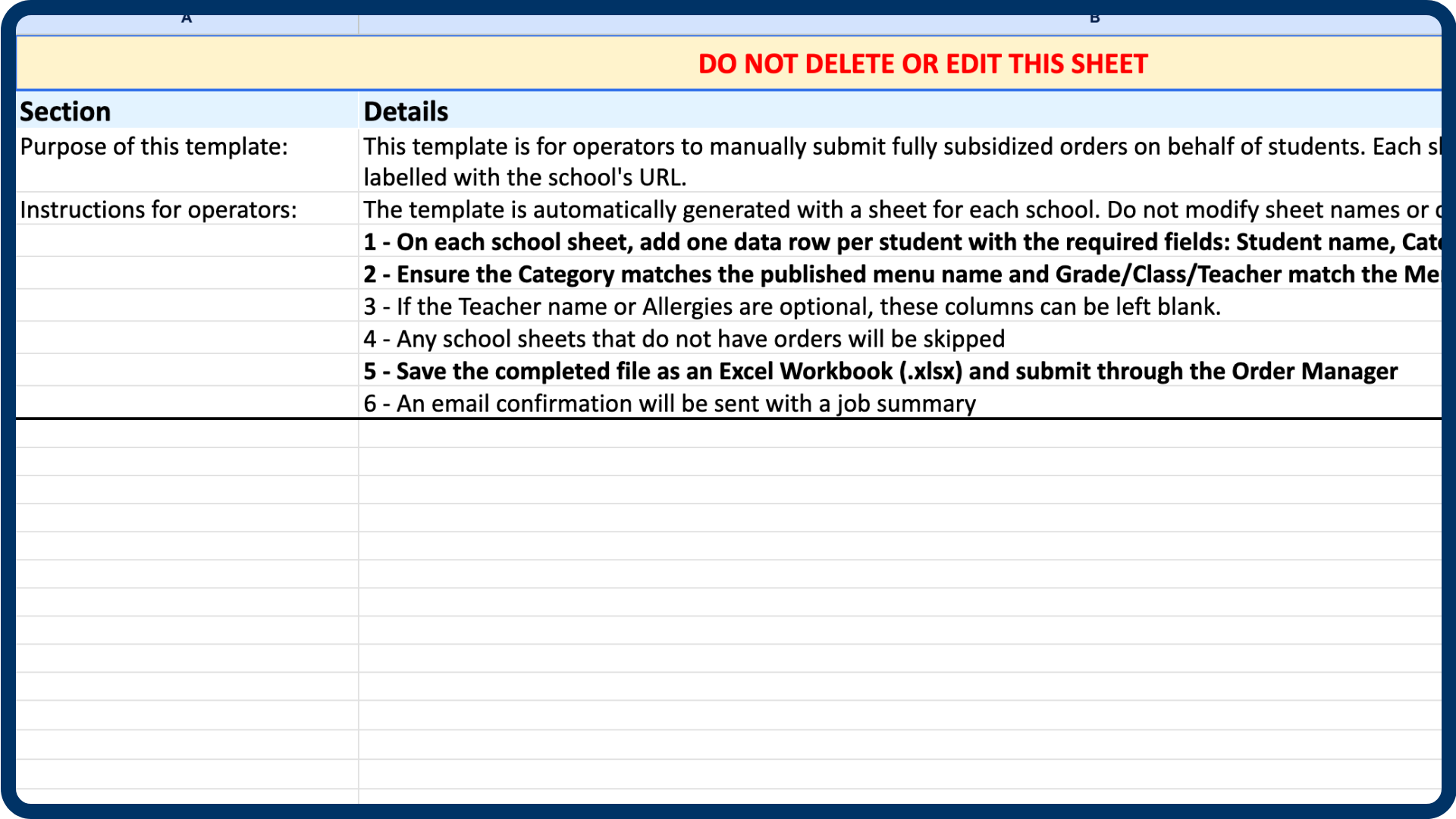
Prepare your data
Read the instructions for operators included within the file to ensure your data is formatted correctly.
Fill the sheet out accordingly with your order details, ensuring all required fields are populated.
Upload and submit
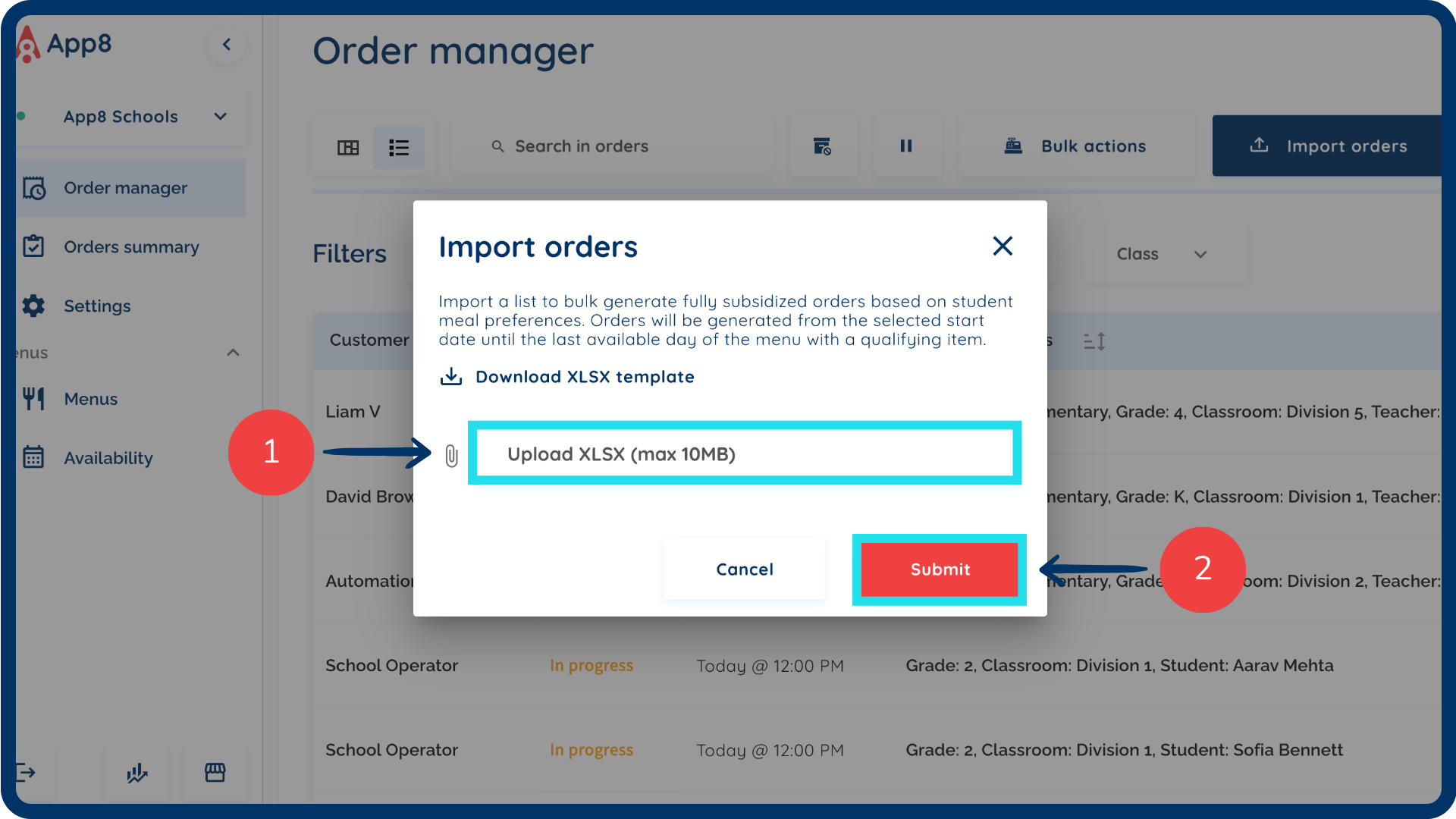
Select or drag and drop your completed file into the upload area.
Click the “Submit” button to import your orders into the system.
Note: Once submitted, the orders will appear in your order manager based on their scheduled dates and statuses.
Was this article helpful?
That’s Great!
Thank you for your feedback
Sorry! We couldn't be helpful
Thank you for your feedback
Feedback sent
We appreciate your effort and will try to fix the article